Props · 3 min read
How to split a YDR prop into two (or more) separate props
Read in: Español · Français · Deutsch · Português · Italiano · Polski · Türkçe · Русский
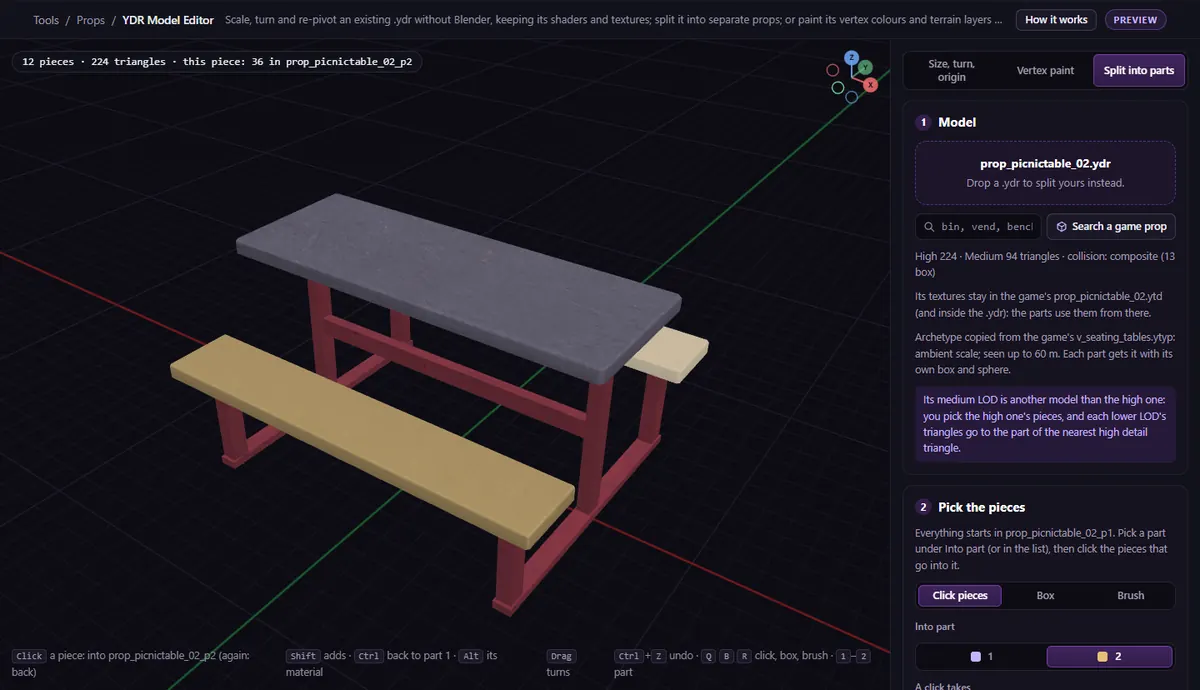
Sometimes one prop is really several: a picnic table with its two benches, a desk with its chair, a sign on its post. To move, hide or animate one part on its own you need it as a prop of its own. The usual way is Blender and Sollumz: import, separate, convert each piece, export each with its own .ytyp. The YDR Model Editor's Split into parts does it in the browser.
What splitting has to keep
A game prop is more than its visible model, and each part has to keep its share of everything:
- Its lower LODs. A prop's Medium and Low models are separate, simpler meshes, not copies of the High one: in the game props we checked, none of their geometry matched the High model's. Each part gets the lower-LOD triangles nearest to its own.
- Its collision. Each collision primitive goes to the nearest part; a collision mesh that spans parts is cut polygon by polygon. A part that gets no collision at all is given a fitted hull.
- Its textures. Textures inside the model go only to the parts that use them; a
.ytdstays as it is, and each part that uses textures from it names it in its archetype. - Its place. With the original's origin, the parts placed at the same coordinates rebuild the prop: read back from the files, every triangle is where it was.
Split it step by step
Open the YDR Model Editor and pick Split into parts. Drop your .ydr (with its .ytd), or search one of the game's props.
- Pick a part under Into part (or in the parts list). Add a part for more, up to 8.
- Click the pieces that go into it: Click pieces moves a whole piece, Box and Brush cut a single mesh, and A click takes the piece or its whole material. Colour by part shows what is where, and Pull apart to look spreads them so you can check nothing was forgotten.
- Name each part (never a game prop's name) and pick its origin: Same origin as the original to rebuild the prop by placing them together, or Centre at its bottom to place each one on its own.
- Set the Resource name and the Collision: The original's, shared out is the default when the prop has one.
- Click Download the N props (.zip).
The page reads the result back before you get it: every triangle in one part, each part's size and collision, and where to place it relative to the original's spot.
What you get
The zip holds a .ydr per part, one .ytyp for all of them, the .ytd you dropped, a report, and an example.lua that spawns every part in front of you. It is commented out in the fxmanifest; uncomment it to try:
-- client_script 'example.lua'Then /<name> spawns the parts and /<name>_clear removes them.
Limits
.ydronly: not.yft(breakable props) or.ydd, and not GTA V Enhanced files.- Props with a skeleton of more than one bone, and geometries over 65,535 vertices, are refused.
- An animated prop's parts come out still.
- Opening a model is free, up to 60 a day.
Questions
- Do the parts still fit together?
- Yes, with Same origin as the original: placed at the original's coordinates and heading, every part is where it was in the original. That is checked in the files the tool writes; look at it in game before you rely on it.
- Do I need the .ytd?
- Only if the textures are not inside the model. The parts' archetypes name the same
.ytdthe original used, so it goes in the resource as it is.
The tool for this
YDR Model Editor
Drop your .ydr, click its pieces into parts, and download a prop for each one, with its LODs, collision, textures and a .ytyp.
Open YDR Model EditorAlso useful here: Model Inspector