Maps & collisions · 3 min read
How to move an MLO or map to another location in FiveM (and rotate it)
Read in: Español · Français · Deutsch · Português · Italiano · Polski · Türkçe · Русский
The MLO you bought sits right where another map already is, or your server's layout needs it across town. Moving it means more than changing one position: a map is many files, and they all have to land in the same new place.
What has to move together
- The
.ymap: every entity, and the MLO's own instance. - The static collision (
.ybn): every corner of it, in world coordinates, and its search tree rebuilt. - The far lights (LOD lights), whose ids depend on where their entity is.
- Grass, occluders, car generators, time cycle boxes and the map's own traffic paths.
- Your scripts' coordinates: door locks, blips, targets, teleports.
Not everything moves the same way. An MLO's rooms, portals and its own collision are stored in the interior's own space, so they never change: only the MLO's instance in the .ymap moves, and they follow it. Turning is harder than moving: every entity's rotation has to be turned too, and the game stores an entity's rotation and an MLO instance's differently.
A plain offset added to a .ymap turns nothing, and it is easy to forget a file: a map whose collision or far lights stayed behind looks fine until someone walks into it.
Move it step by step
Drop the map's resource folder (or its .zip) into Map Mover. Only the files with positions in them are sent (and, for far lights, the models they hang on).
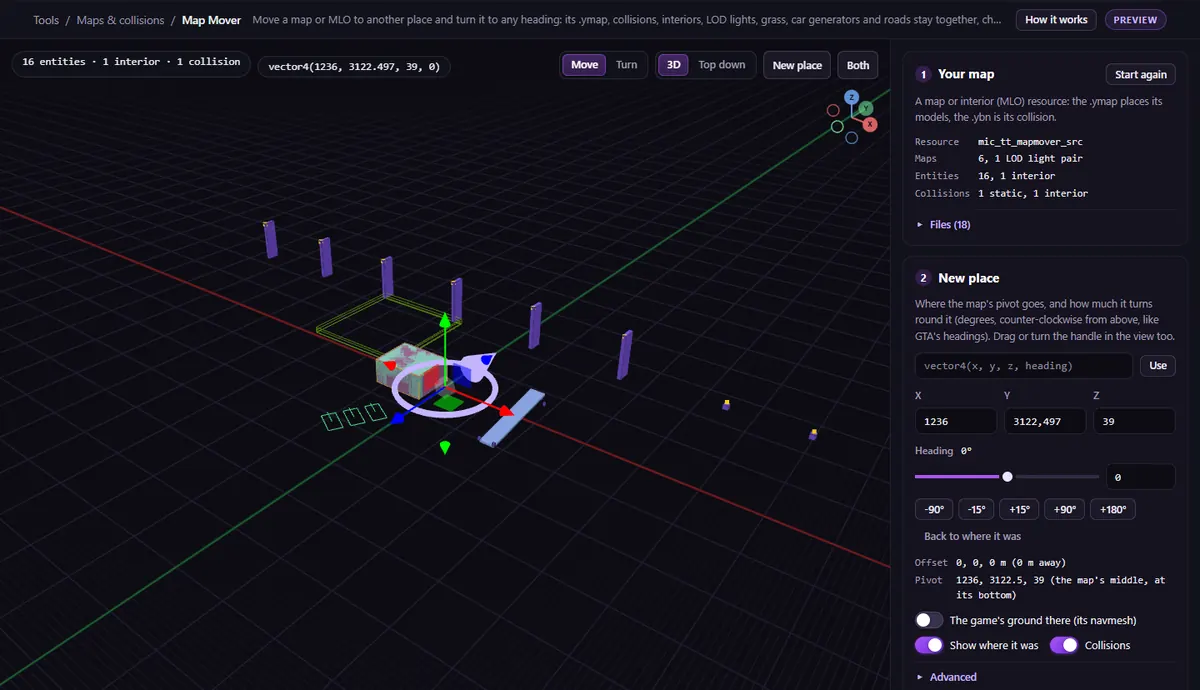
- Your map. Check what was found: maps, entities, collisions, traffic paths. Under Files, a file with positions in it (map, collision, lights, grass, occluders, paths) can be set to Move, Keep as it is or Leave out; the others to keep or leave out. A file named like one of the game's stays where it is unless you set it to Move.
- New place. Paste a
vector4(x, y, z, heading)and press Use, type X, Y and Z, or drag the move and turn handle. Turn it with the Heading slider or the −90°, −15°, +15°, +90° and +180° buttons; it turns round the map's middle, at its bottom. The game's ground there (its navmesh) shows the ground at the new spot, Put the map's bottom on that ground sets the height, and Show where it was keeps the old place in view. - What moves. The list of everything that will move. Tick Also move the coordinates in your scripts to move the
vector3,vector4andvec3coordinates in its.luafiles that sit in the map's area, with the headings beside them. - Download the moved resource (.zip).
The zip holds the whole resource with the moved files in place, and a MAP_MOVED.txt with what was moved, the checks made on each file, and every script line changed (as it was, and now). Remove the old resource, ensure the new one and restart the server: an interior cannot start with players already in.
What cannot move
- Navmesh (
.ynv) and scenario points. - Water (
water.xml): its areas lie on the map's axes and cannot turn. - Positioned audio emitters, and files that replace the game's own.
- Script coordinates written any other way than
vector3,vector4orvec3(orvec4,vec).
Every move is checked file by file after it is made, but the checks are on the files: as with any map change, walk through it in game before your players do. Drop it into Map Conflict Check to make sure the new spot is free.
Questions
- Can I move an MLO I bought?
- If its files can be read, yes. Escrowed (encrypted) files cannot be read, so they cannot be moved.
- Is it free?
- Opening a map and the 3D preview are free. Downloading the moved resource is a Creator plan export.
The tool for this
Map Mover
Drop your map or MLO, pick the new spot and heading, and download it moved, with its collisions, lights, grass, car generators and scripts.
Open Map MoverAlso useful here: Map Conflict Check