Vehicles · 3 min read
How to add liveries to a GTA car that has none (FiveM)
Read in: Español · Français · Deutsch · Português · Italiano · Polski · Türkçe · Русский
The usual advice for adding a livery is to put a texture called <model>_sign_1 in the car's .ytd. On a car that already takes liveries, that works. On most cars it does nothing at all, because their paint has no place for a livery.
How a GTA V livery works
A livery is a second picture laid over the car's paint. The paint's shader takes it as an extra texture, on a second set of UV coordinates, and the game switches between the textures named <model>_sign_1, <model>_sign_2… in the car's .ytd with SetVehicleLivery. For that to work, three things have to be there:
- A paint shader that takes a livery. Most of the game's vehicles use paint shaders that do not: in a census of 900 vehicles, 730 use
vehicle_paint1orvehicle_paint2. - A livery UV: the second set of coordinates that says where on the car each part of the livery picture goes.
- The car's entry saying it has liveries (its
FLAG_HAS_LIVERY, invehicles.meta).
The third one is why a game car cannot simply be given liveries from a resource: a resource can stream new files for it, but it cannot change the game car's own vehicles.meta entry. A game car with new livery textures shows the first one only. An addon copy of the car, with its own entry, switches between all of them.
The livery UV problem
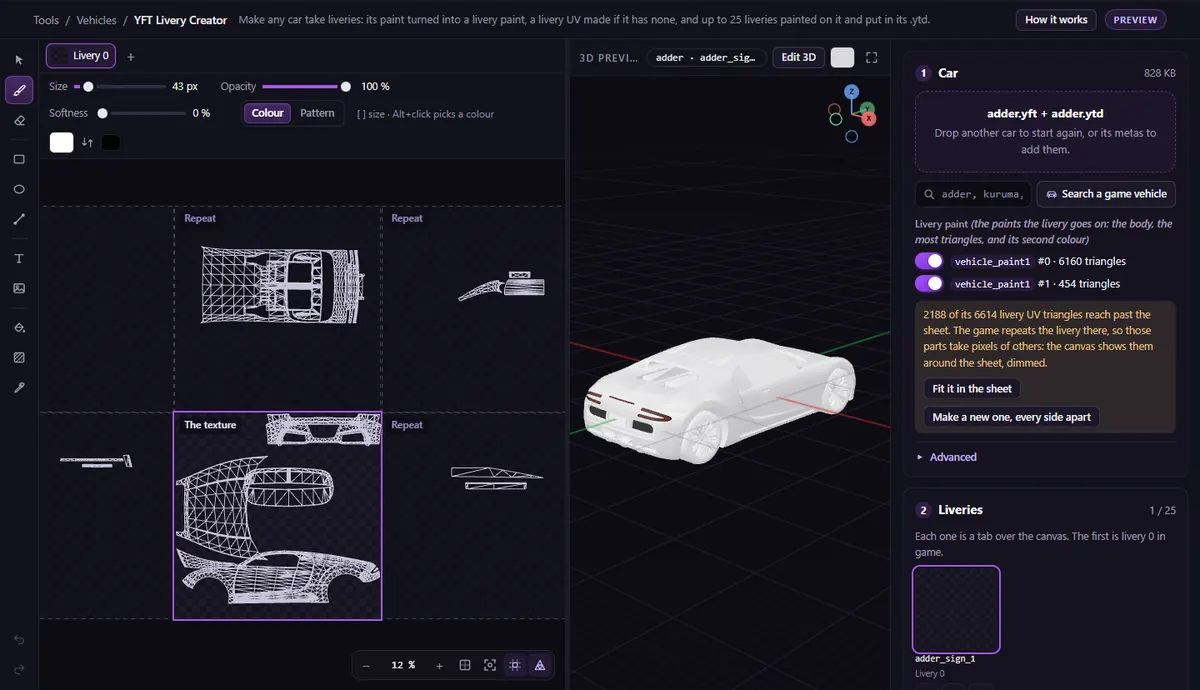
Even cars that have a livery UV often lay it out for the game's own designs, not yours: coordinates that run past the edge of the sheet and repeat, and the two sides of the car sharing one mirrored area, so text on one side comes out backwards on the other. On the Adder, 61 % of the sheet is shared by both sides. A new UV with every side apart fixes that.
Add liveries step by step
Open the YFT Livery Creator and drop the car's .yft, _hi.yft and .ytd (with its vehicles.meta and carvariations.meta for an addon car), or pick one of the game's cars.
- Livery paint. The paint the liveries go on is ticked for you (the car's main paint); tick others if you want them too. A
vehicle_paint1orvehicle_paint2paint is converted tovehicle_paint3, which takes one; a paint that cannot be converted is greyed out. - Livery UV. If the car's UV runs past the sheet or shares it between sides, the page says so: press Make a new one, every side apart. A paint with no livery UV at all gets one made for it.
- Liveries. Paint each one on the car in 3D (colours, gradients, pictures, text), or Download the UV template, paint it in your own editor and drop the livery pictures back. Up to 25; the first is livery 0 in game.
- Pick the Livery size (2048 px by default; 1024 or 4096).
- Download as: A new addon car (with its own spawn name, up to 11 characters) for liveries that switch, or This car as it is for an addon car you already have.
Then ensure the resource and switch liveries in game:
SetVehicleLivery(GetVehiclePedIsIn(PlayerPedId(), false), 1)The video tutorial paints a T20 and drives the new addon car in game.
Already has liveries?
If the car already takes liveries and you only want to repaint them, Livery Studio opens them on their own UV and saves them back into the car's .ytd. For a template of any material's UV, there is the Vehicle UV Mapper.
Questions
- Why does SetVehicleLivery do nothing on my car?
- Either its paint cannot take a livery, or its
vehicles.metaentry does not say it has liveries. Both are fixed by making it an addon car with the livery paint. - Can I add liveries to a game car without making an addon?
- You can stream new livery textures for it, but the game car's own entry cannot be changed from a resource, so it shows only the first one.
The tool for this
YFT Livery Creator
Drop a car or pick one of the game's: its paint takes liveries, a livery UV is made if it has none, and you paint up to 25 liveries live on the car.
Open YFT Livery CreatorAlso useful here: Livery Studio · Vehicle UV Mapper